Part 2 of 9 · 3 min read · Updated 1 October 2026
How to create a collection
Collections are the shelves your items sit on: one for coins, one for cards, one for watches. Make one, give it a type and a cover photo, and watch its value add up.
What a collection is
A collection is a shelf for one kind of thing: coins, trading cards, watches, sneakers, whisky. Every item you add lives in a collection, so you need at least one before you can add items. Make as many as you like, and split them however suits you: by type (PSA graded cards), by place (the display cabinet) or by hunt (Labubu, the full set).
Create your collection
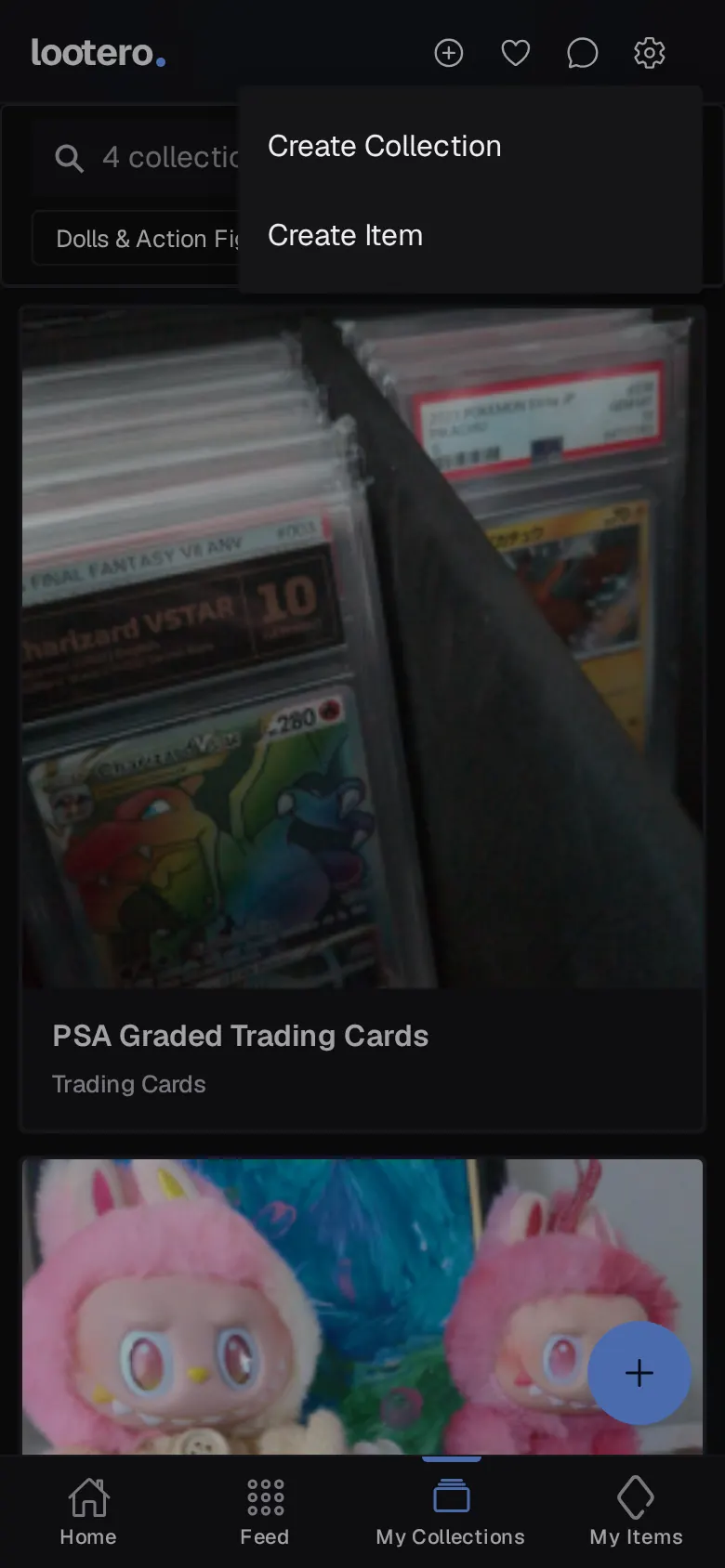
- Tap ⊕ at the top right and choose Create Collection. On the My Collections tab you can also use the round + button at the bottom right.
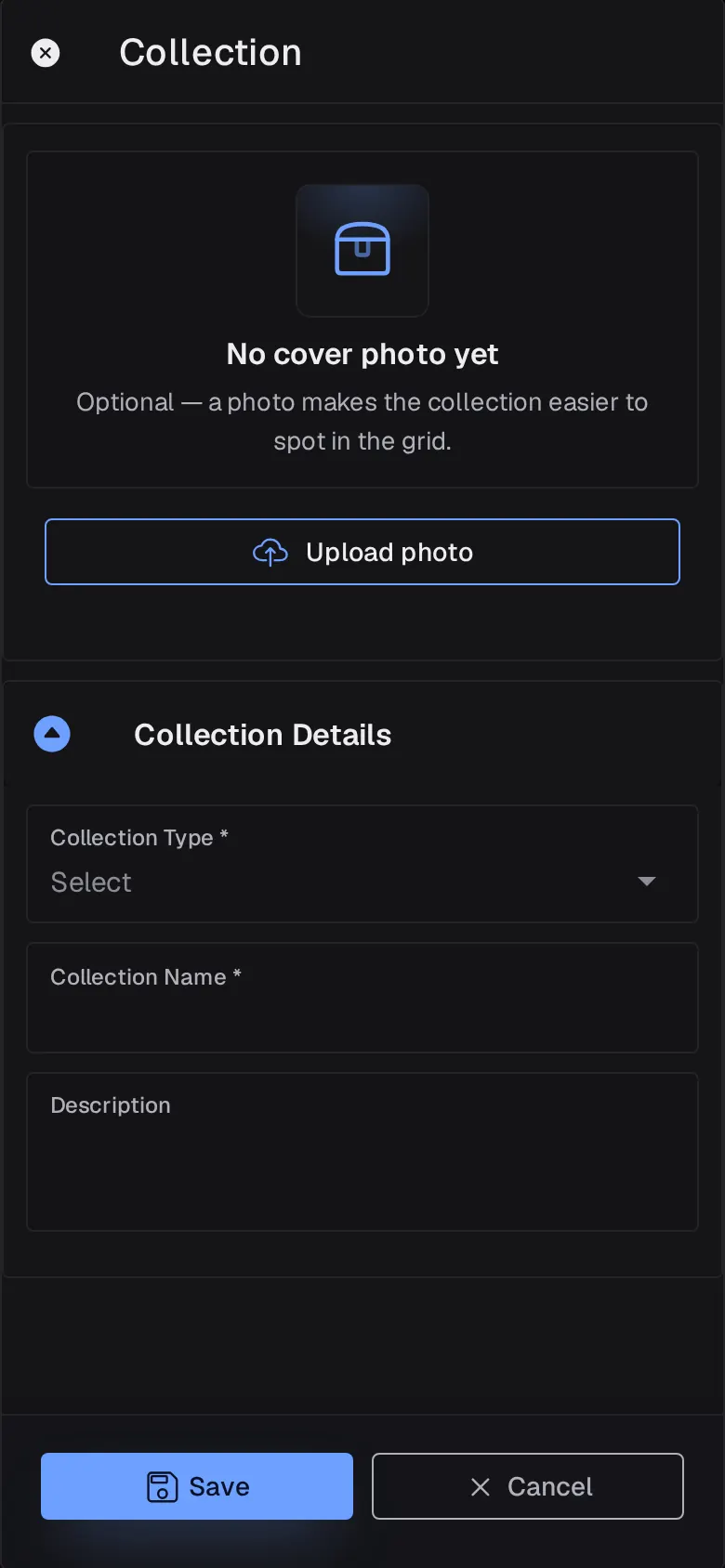
- Add a cover photo if you like. It's optional, but a photo makes the collection easier to spot in the grid. On a phone, tap Take photo or Select photo; on a computer, Upload photo.
- Pick a Collection Type, such as Trading Cards, Coins or Watches. Start typing to search the list. If yours isn't there, tap Add and type your own.
- Give it a Collection Name and, if you want, a Description.
- Tap Save.
The My Collections tab
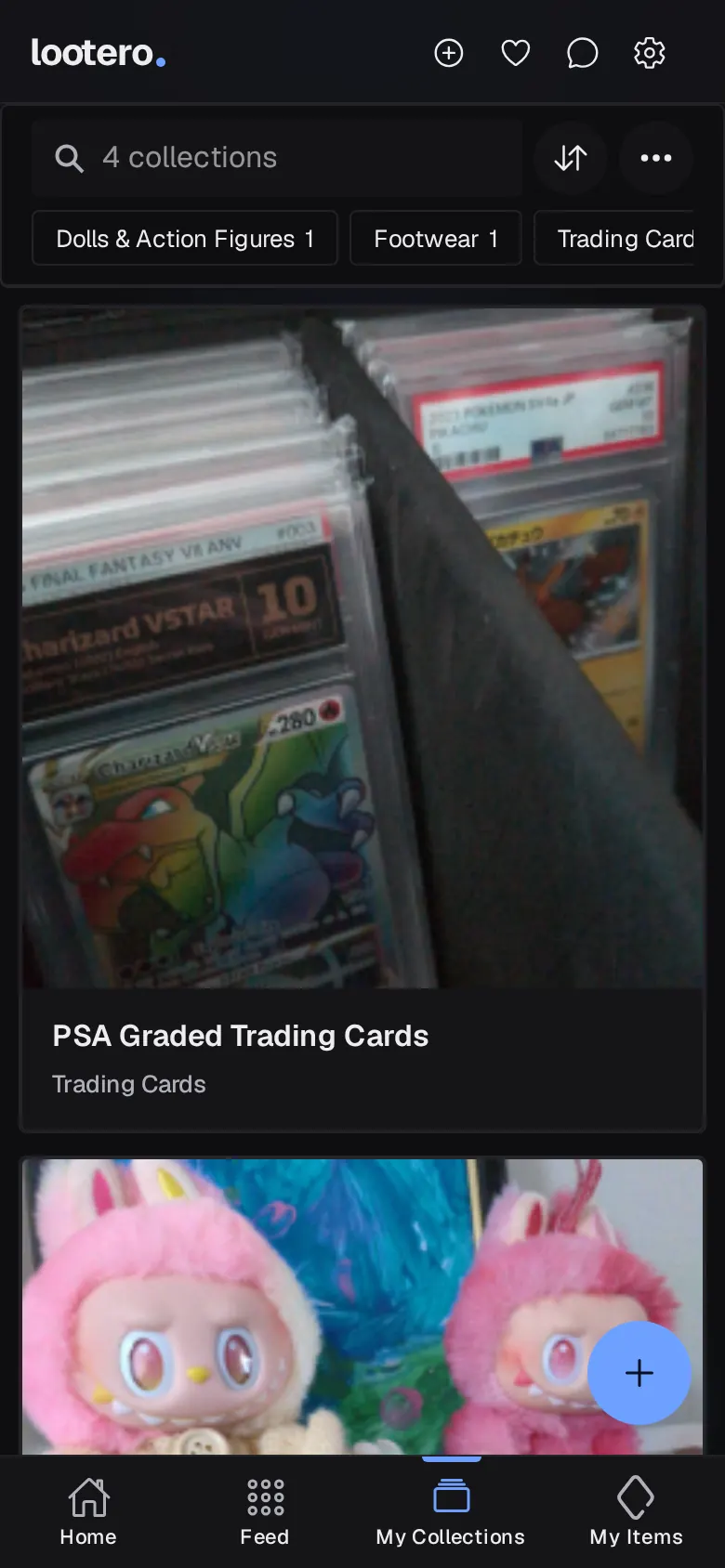
Every collection shows as a card with its cover photo, name and type. Use the search bar to find one by name, the sort button to order them by Updated, Name, Type or Items (tap the active one again to flip the order), and the chips underneath to show one type at a time. On a computer, the ⋯ menu switches to a Table view.
Inside a collection
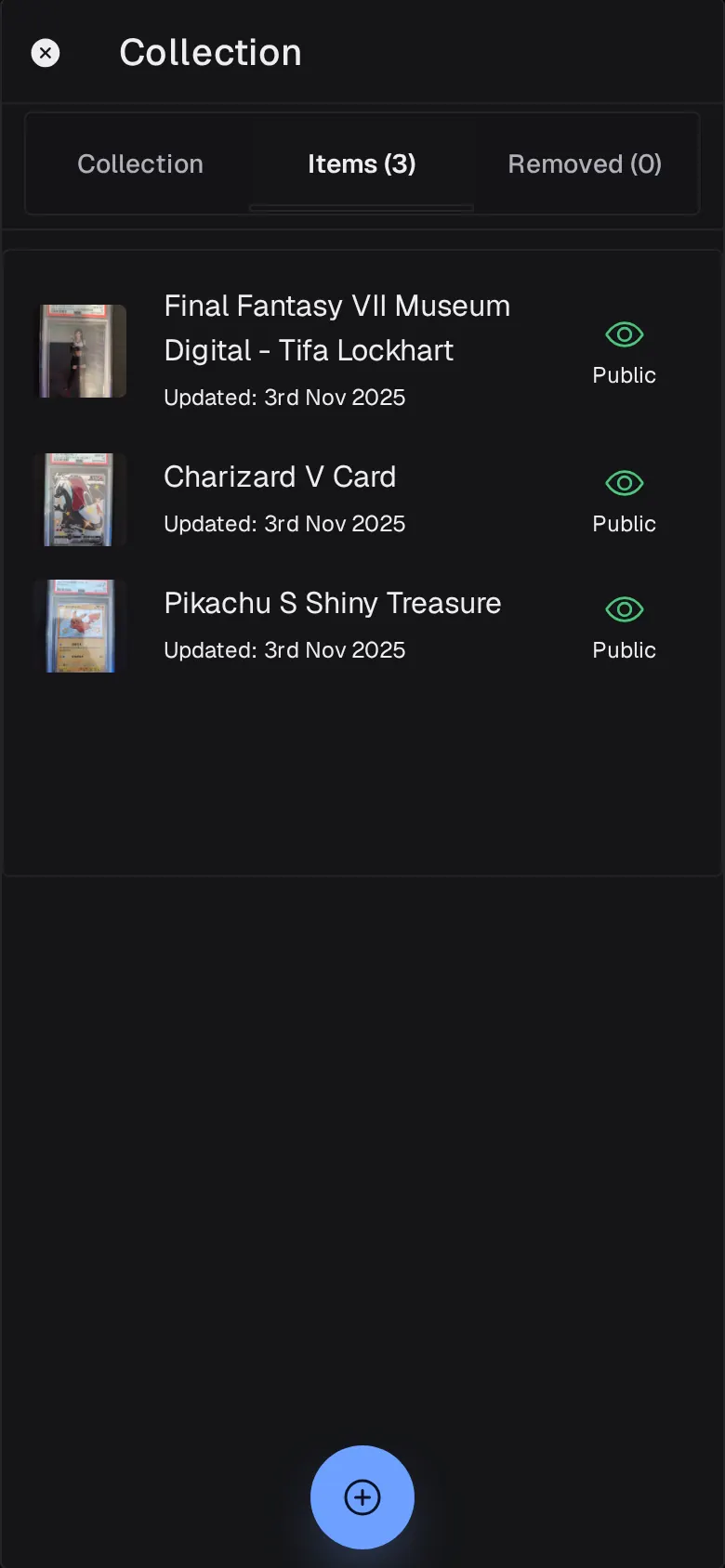
Tap a collection to open it. The Collection tab shows its cover, name and description, with what you've spent (Cost), what it's worth (Value) and your Profit once items have prices. Items lists everything in it, and Removed keeps anything you've taken out.
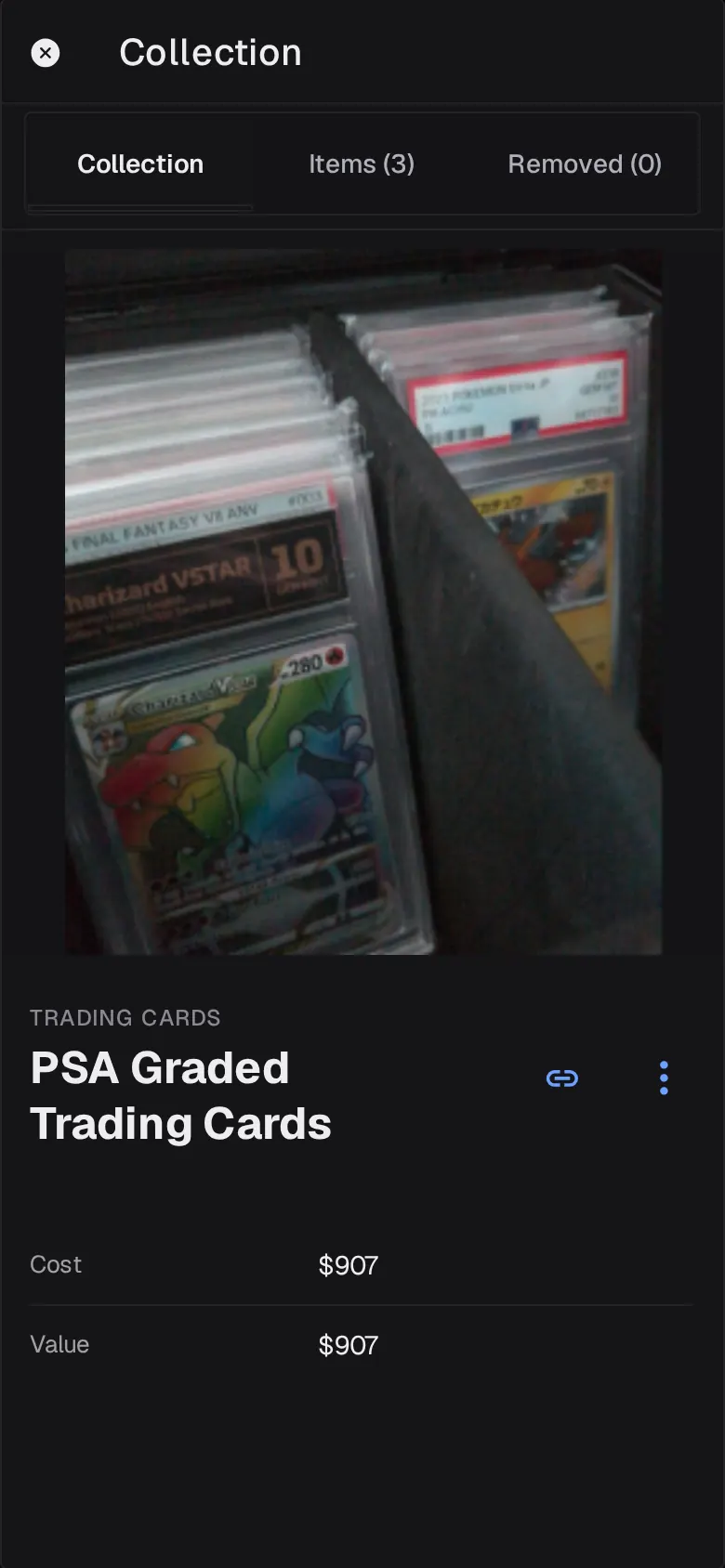
The ⋮ menu next to the name lets you Edit or Delete the collection, or Make items public / Make items private in one go. Deleting a collection also deletes every item in it, so Lootero asks you to confirm first. The link icon copies a share link; see sharing your collection.
Next: add your first item.