Part 9 of 9 · 3 min read · Updated 1 October 2026
Settings, credits and themes
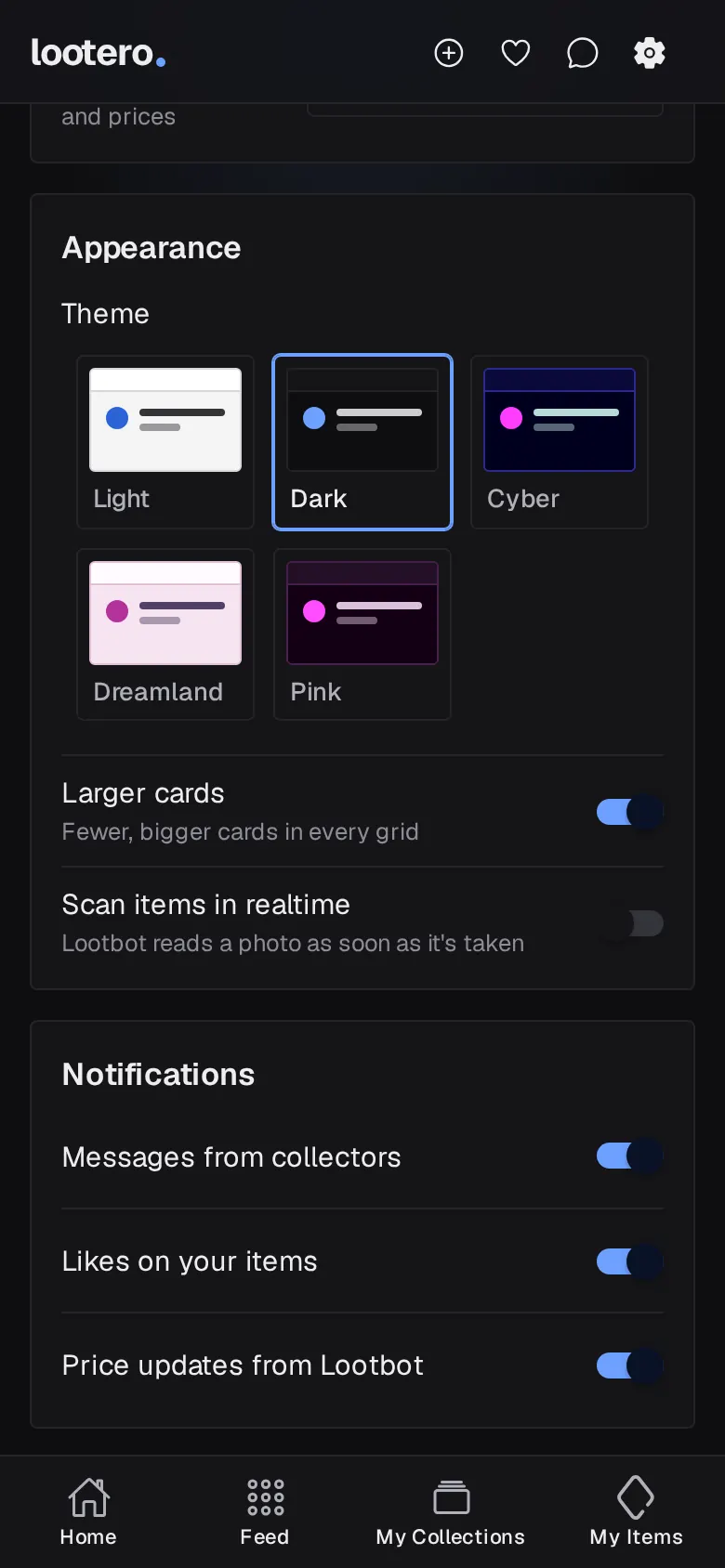
Credits are what new items and collections use, and reward videos top them up. Settings is also where you pick one of five themes, turn on photo scanning and choose your notifications.
Open Settings
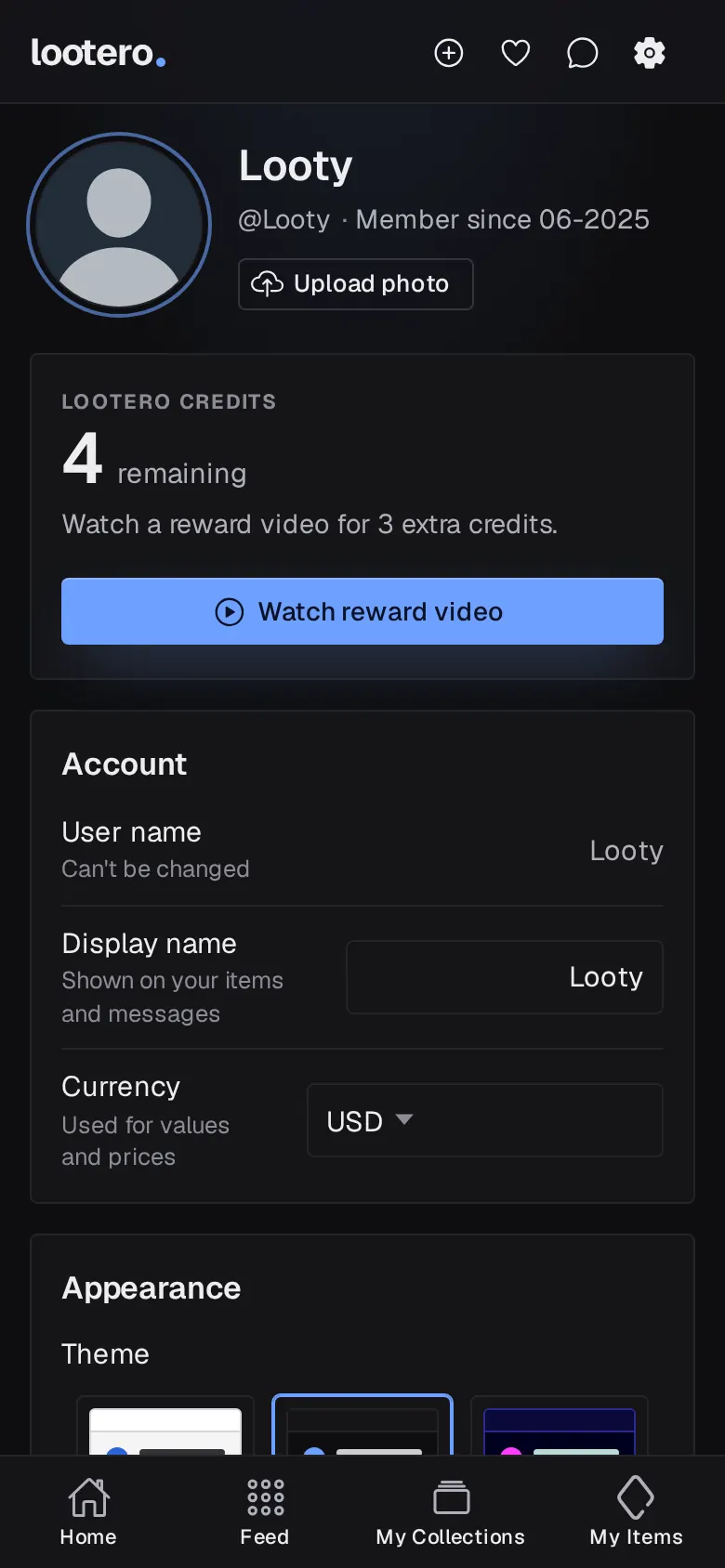
Tap the gear icon at the top right of any screen. At the top you'll see your picture (tap Upload photo to change it), your name and how long you've been a member.
Lootero credits
Lootero is free to use. Each item and collection you create uses one credit, and Lootero credits shows how many you have left. When you run low, tap Watch reward video: each video adds 3 credits, up to five videos a day. Reward videos work in the iPhone and Android apps, not in the browser.
Account
- User name: what you sign in with. It can't be changed.
- Display name: the name shown on your items and messages.
- Currency: used for values and prices.
Appearance
- Theme: pick Light, Dark, Cyber, Dreamland or Pink. Each swatch is a miniature of the theme, and the change applies straight away.
- Larger cards: fewer, bigger cards in every grid.
- Scan items in realtime: Lootbot reads a photo as soon as it's taken and fills in the item's name and description. Turn this on to get the most out of adding items with a photo.
Notifications, logging out and deleting your account
Under Notifications, choose whether you hear about Messages from collectors, Likes on your items and Price updates from Lootbot. If your phone has notifications blocked for Lootero, a note explains how to turn them back on.
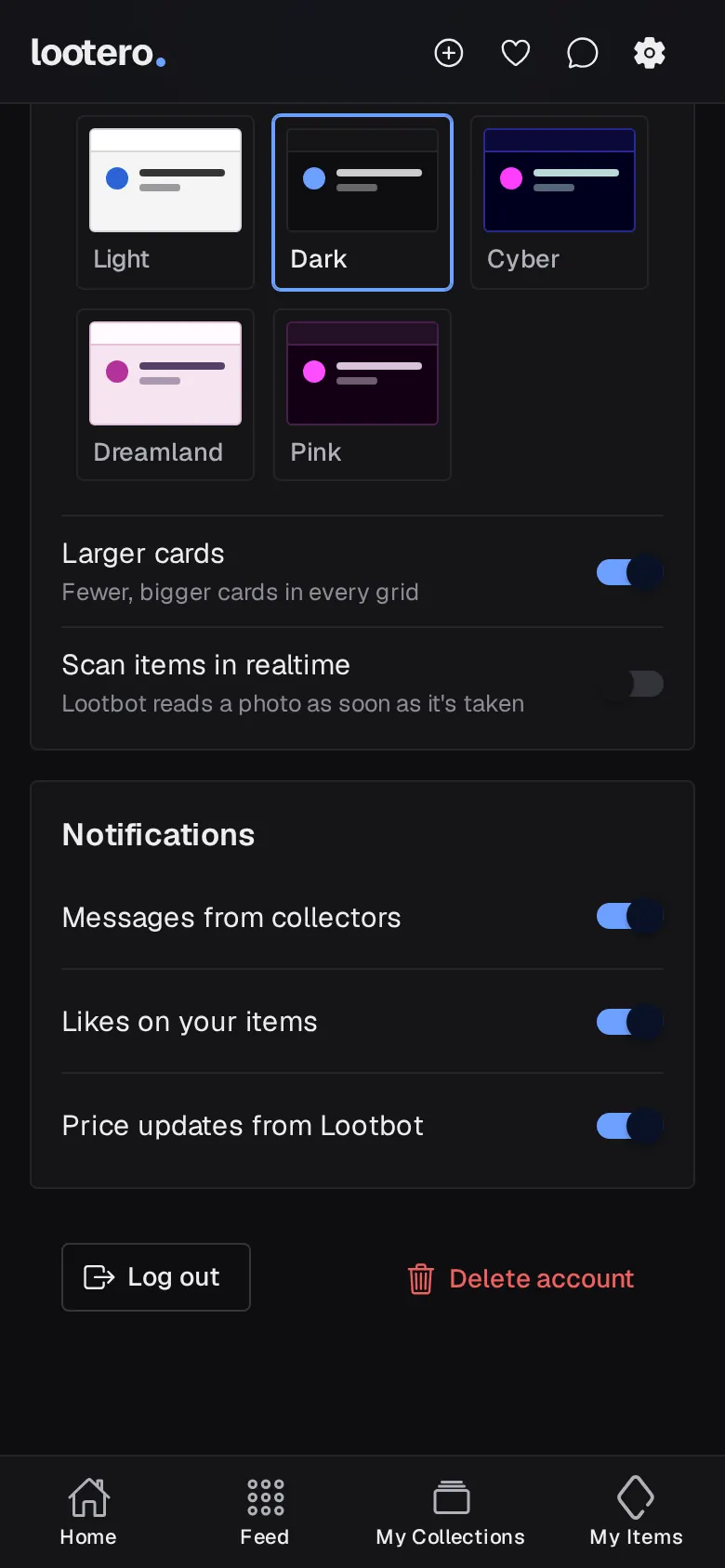
At the bottom are Log out and Delete account. Deleting your account removes it permanently, so Lootero asks you to confirm.
That's the whole tour. Head back to the beginner's guide for the quick version, or open Lootero and start your first collection.